

How to install Xtreme HD IPTV on firestick is a common question among users who have already purchased a subscription but are unsure how to set it up on their device.
Amazon Firestick is one of the most popular streaming devices, and when paired with Xtreme HD IPTV, it offers access to live TV, sports, movies, and on-demand content in high quality.
This guide is ideal for beginners and non technical users who want a smooth and hassle free streaming experience. Many clients get the Xtreme HD IPTV subscription but don’t know how to install it on Firestick or where to start.
If you’re facing the same issue, you’re in the right place. In this article, we will guide you through each step in a simple and easy to understand way, so you can install Xtreme HD IPTV on your Firestick confidently and start streaming without confusion.
What Is Xtreme HD IPTV?
Xtreme HD IPTV is a premium streaming service that delivers live TV channels, movies, sports, and on-demand content through the internet instead of traditional cable or satellite. It offers smooth playback, high quality streams, and wide device compatibility for modern viewers.
The service provides access to thousands of international channels, including entertainment, news, sports, and PPV content, all in one place. Users can enjoy flexible plans, HD and 4K streaming options, and a user-friendly experience.
Xtreme HD IPTV works on popular devices like Firestick, Android, Smart TVs, and more, making it easy to stream anywhere. It’s an ideal choice for users who want reliable, affordable, and all in one entertainment without cable limits.
How To Subscribe Xtreme HD IPTV
Subscribing the Xtreme HD IPTV is quite easy than the others site, in this heading we are going to cover this process and will attach the screenshot as well so you can easily understand the process of subscribing the Xtreme HD IPTV, let’s dive into the process.
Note: We don’t host or stream copyrighted content this is just a educational purpose blog.
Currently Xtreme HD IPTV accepting the Cryptocurreny, Credit/Visa card and Revolut payment.
Here are the steps you need to follow to how to subscribe the Xtreme HD IPTV:
1. first of all you need to visit the official site of Xtreme HD IPTV on your mobile, laptop or PC whatever device you are using.
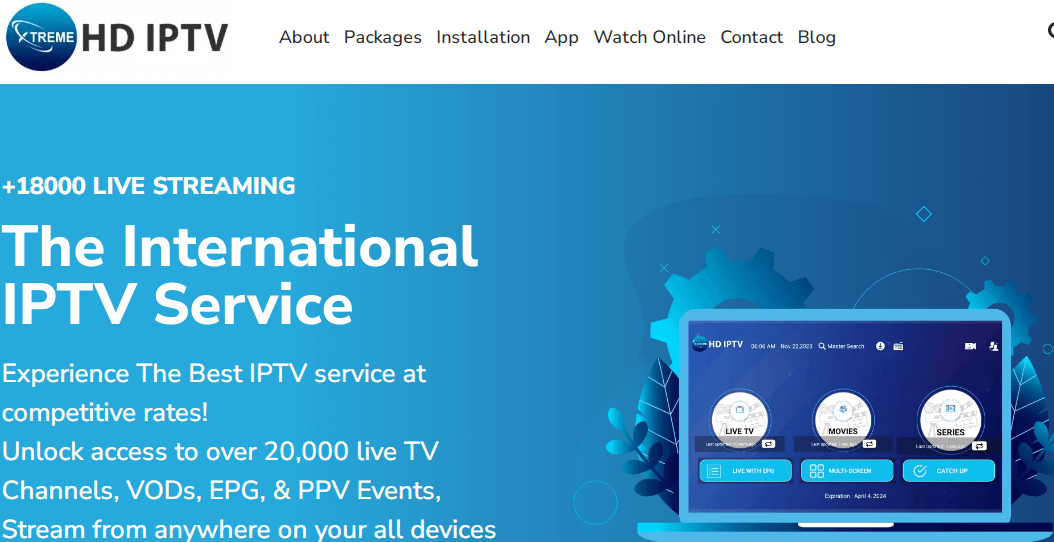
2. So now you are at the official site of Xtreme HD IPTV from here select the package whatever you want to go with according to your budget.
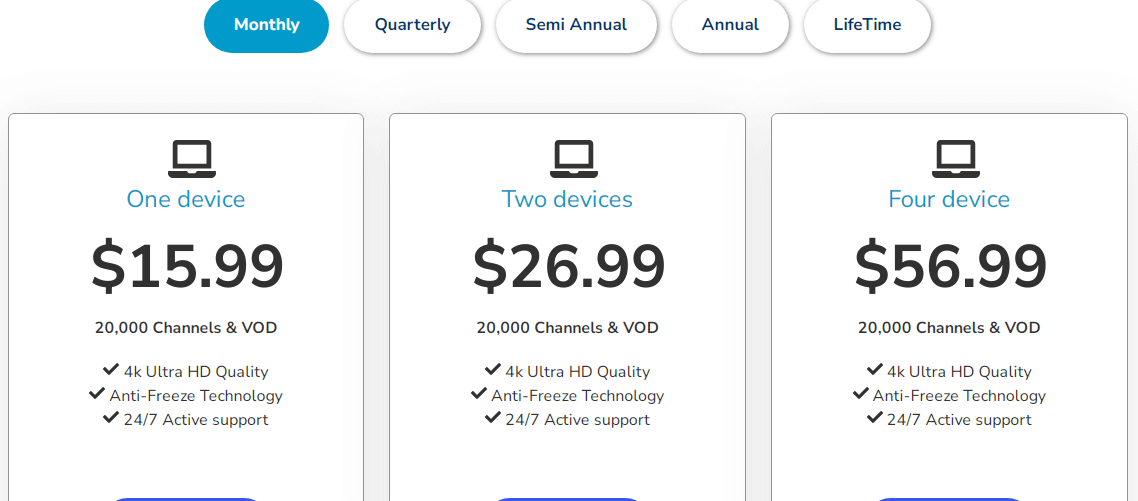
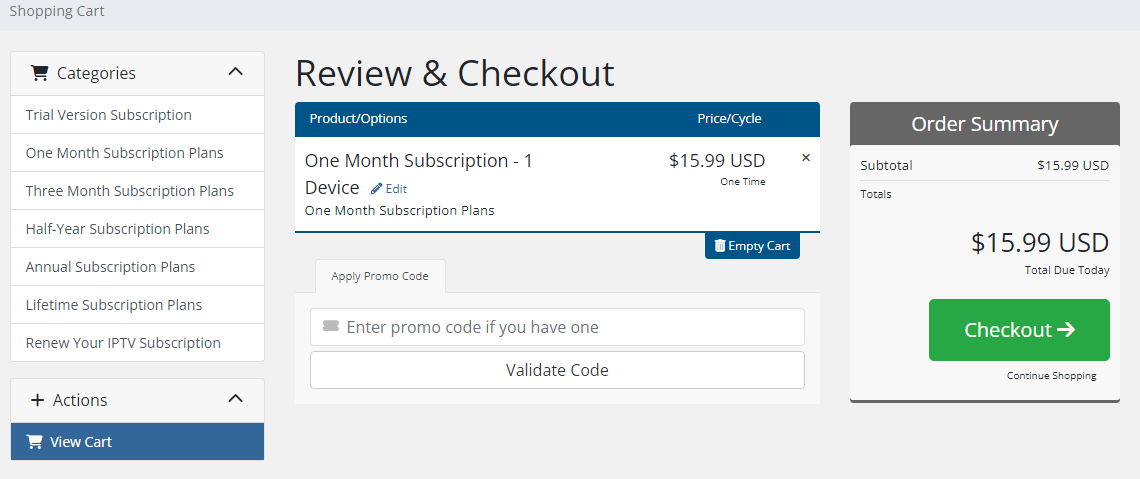
3. After that you will be redirected to the billing section now click on Checkout to proceed further.
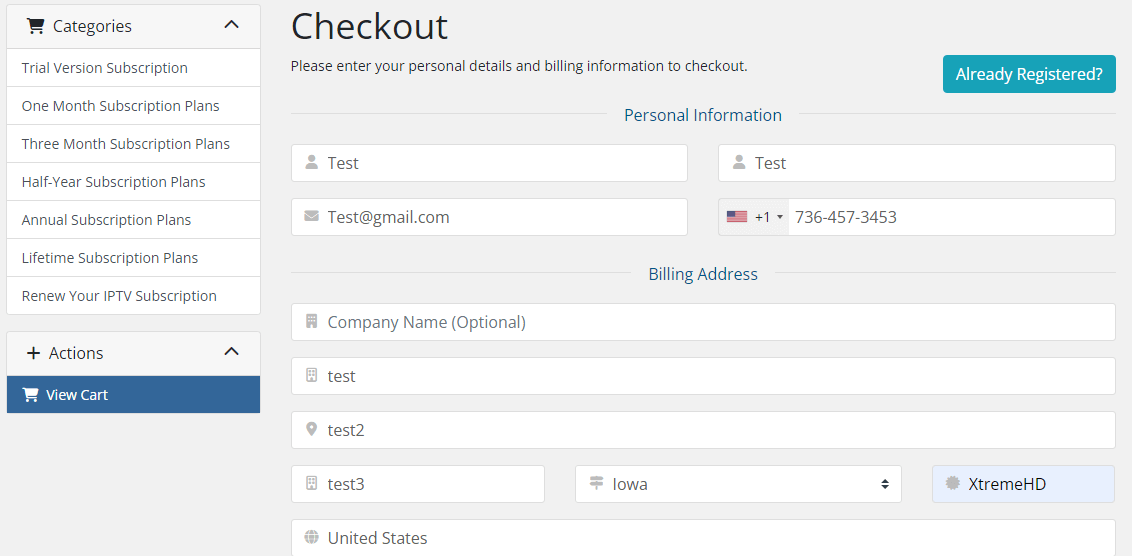
4. In the next screen you will be asked for your personal information put the information and select preferred payment gateway you want to pay with then click on Complete order.
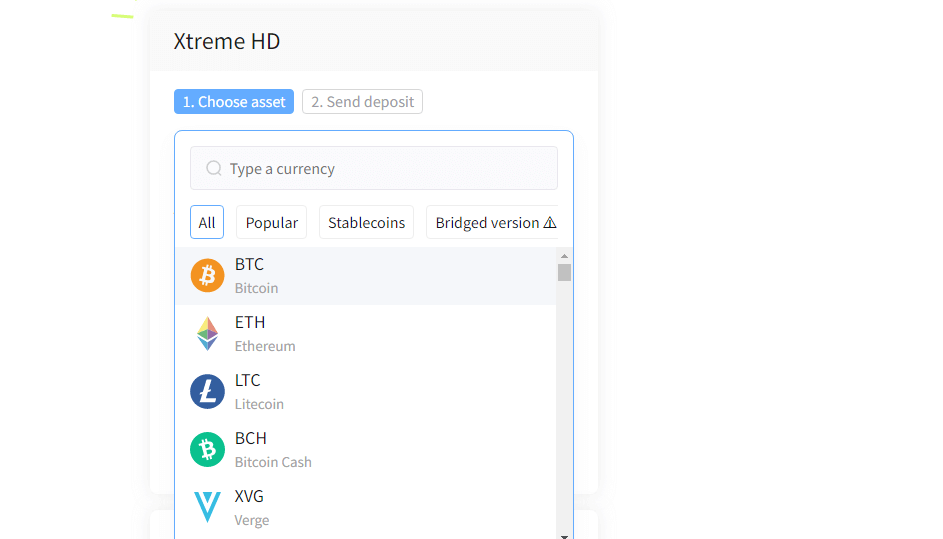
5. Now select the crypto coin you want to pay with and make the payment.
That’s it, now you have now successfully subscribed the Xtreme HD IPTV they will now verify your payment you made and will activate your account and send you details in your email so check your inbox or spam folder to get the details and move towards the installation process.
How To Install Xtreme HD IPTV On Firestick
Installing Xtreme HD IPTV on Firestick is easier than it sounds, even if you’re doing it for the first time. Since IPTV apps aren’t available directly on the Amazon App Store, we just need to prepare the Firestick first and then install the required apps safely. Follow each step below carefully and you’ll be streaming in no time.
Here are the steps you need to follow to how to install Xtreme HD IPTV on Firestick:
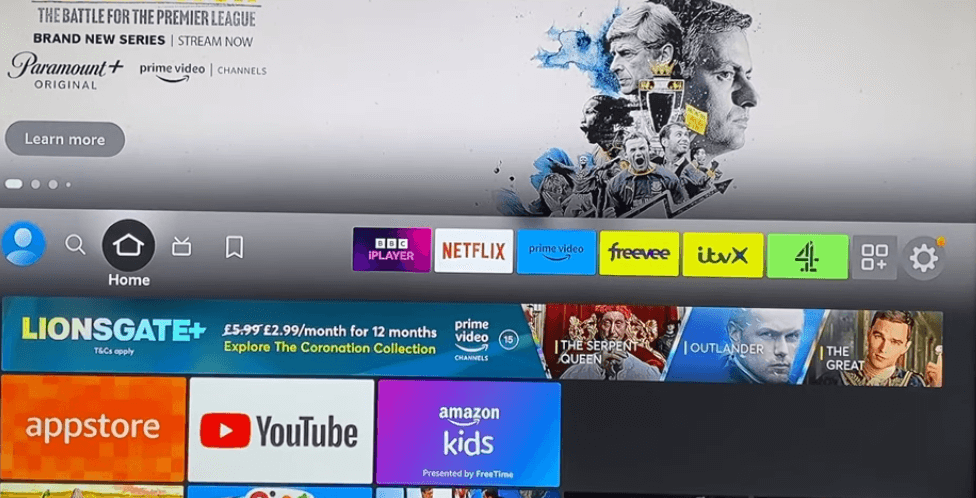
1: Turn on your Firestick and make sure it’s connected to the internet. From the Firestick home screen, move to the top menu and select Settings.
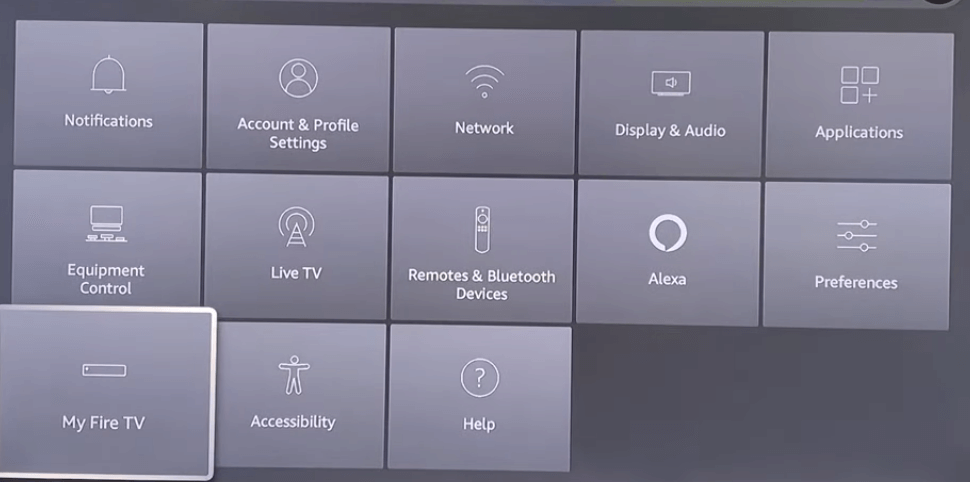
2: Inside Settings, scroll right and click on My Fire TV (on some devices it may show as Device & Software).
3: Now select About and then click on your Firestick name (for example, Fire TV Stick 4K) 7 times continuously. You’ll see a message saying “You are now a developer.” This step unlocks the developer options.
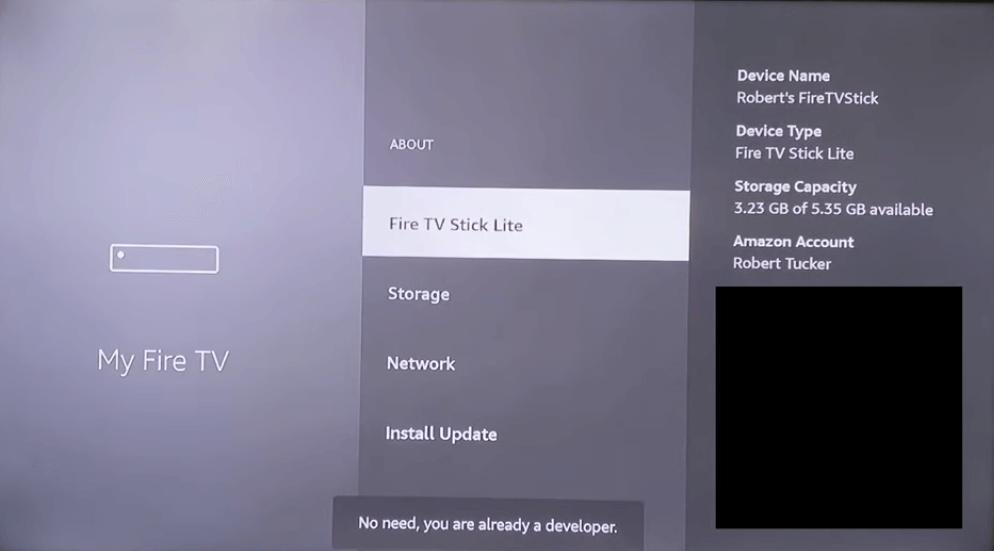
4: Go back to the My Fire TV screen and you will now see Developer Options. Open it and click on Apps from Unknown Sources.
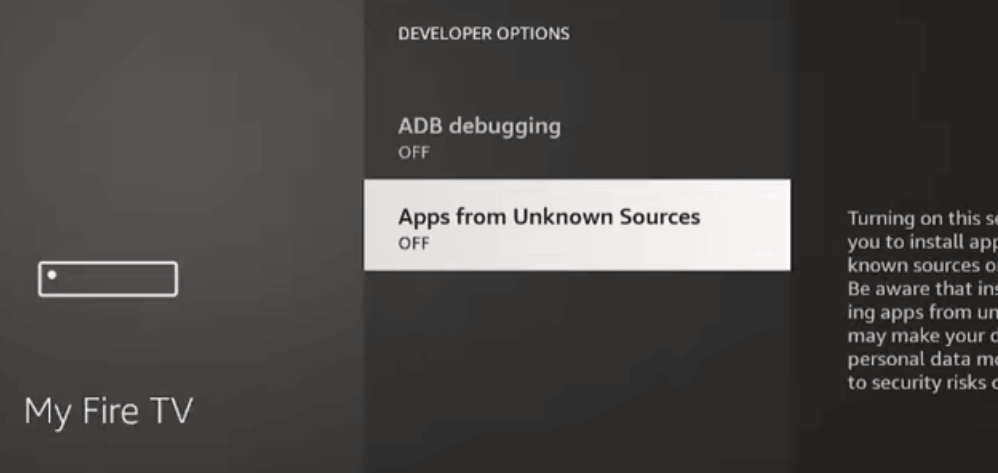
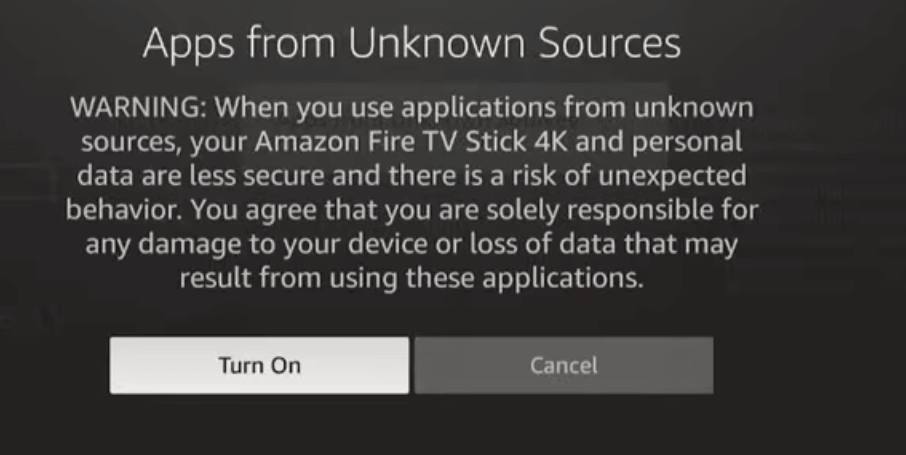
5: Turn Apps from Unknown Sources to ON. When a warning message appears, simply confirm it. This allows you to install IPTV apps that are not from the Amazon Store.
6: Press the Home button on your remote to return to the main screen. Now select the Search icon (magnifying glass) and type Downloader.
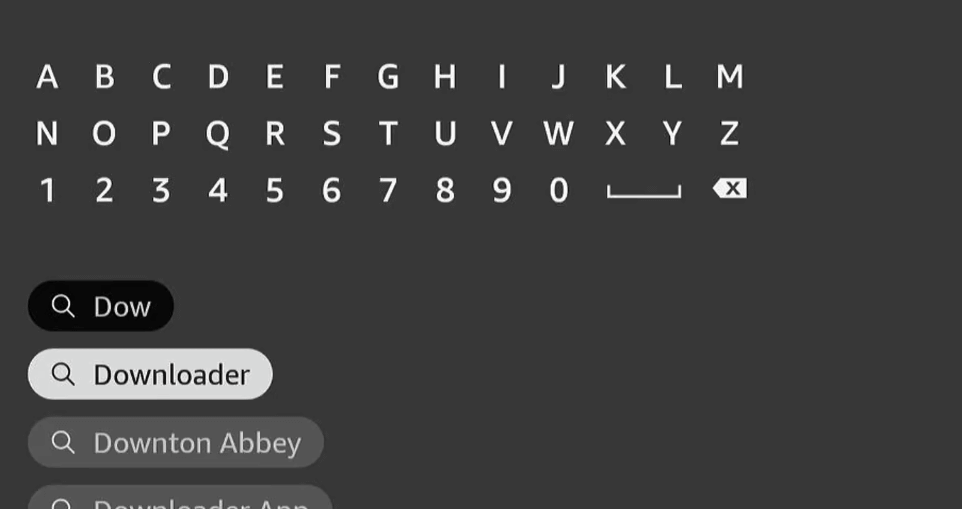
7: Click on the Downloader app from the search results, then select Download or Get. Wait for the app to install completely.

8: Once installed, open the Downloader app. If any permission pop-ups appear, allow them so the app can work properly.
9: Inside Downloader, click on the URL box and enter the official download link for IPTV Smarters or code 6468112 or (your Xtreme HD IPTV provider will usually give you the correct link). After entering the link, press Go.

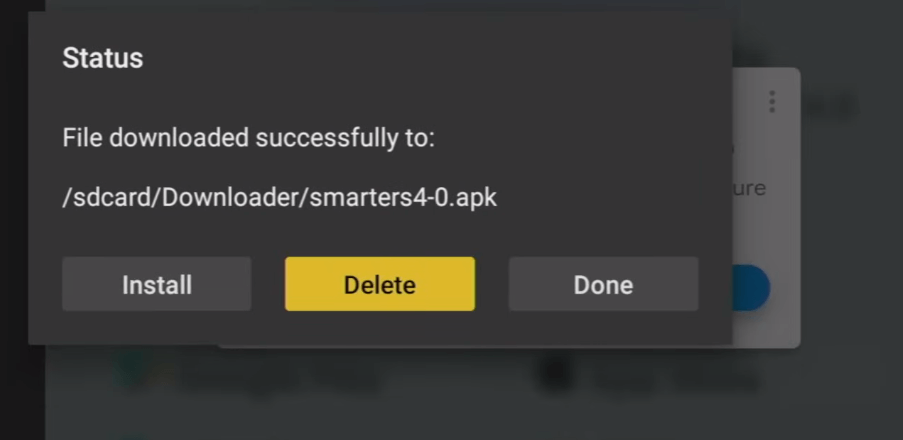
10: Wait a few seconds while IPTV Smarters downloads. When the download finishes, an installation screen will appear automatically. Click Install and let the process complete.

11: After installation, click Done (not Open). Downloader may ask if you want to delete the APK file select Delete and confirm again to save storage space.
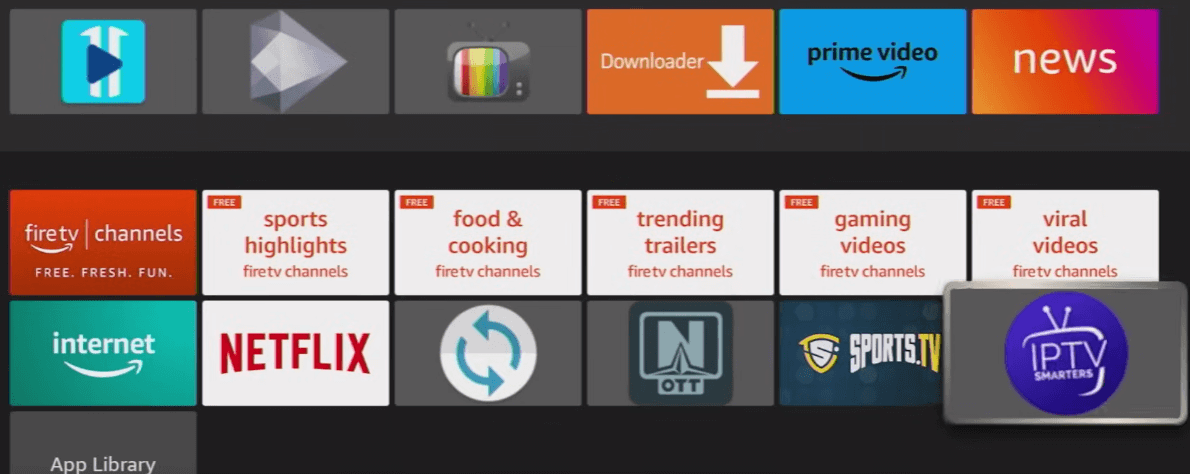
12: Now go back to the Firestick home screen, open Your Apps & Channels, and scroll until you find IPTV Smarters. You can move it to the front for easy access.
13: Open IPTV Smarters and choose Login with Xtream Codes API or Xtream Codes. Enter the Username, Password, and Server URL or Portal URL provided by Xtreme HD IPTV, then click Add User or Add Playlist.
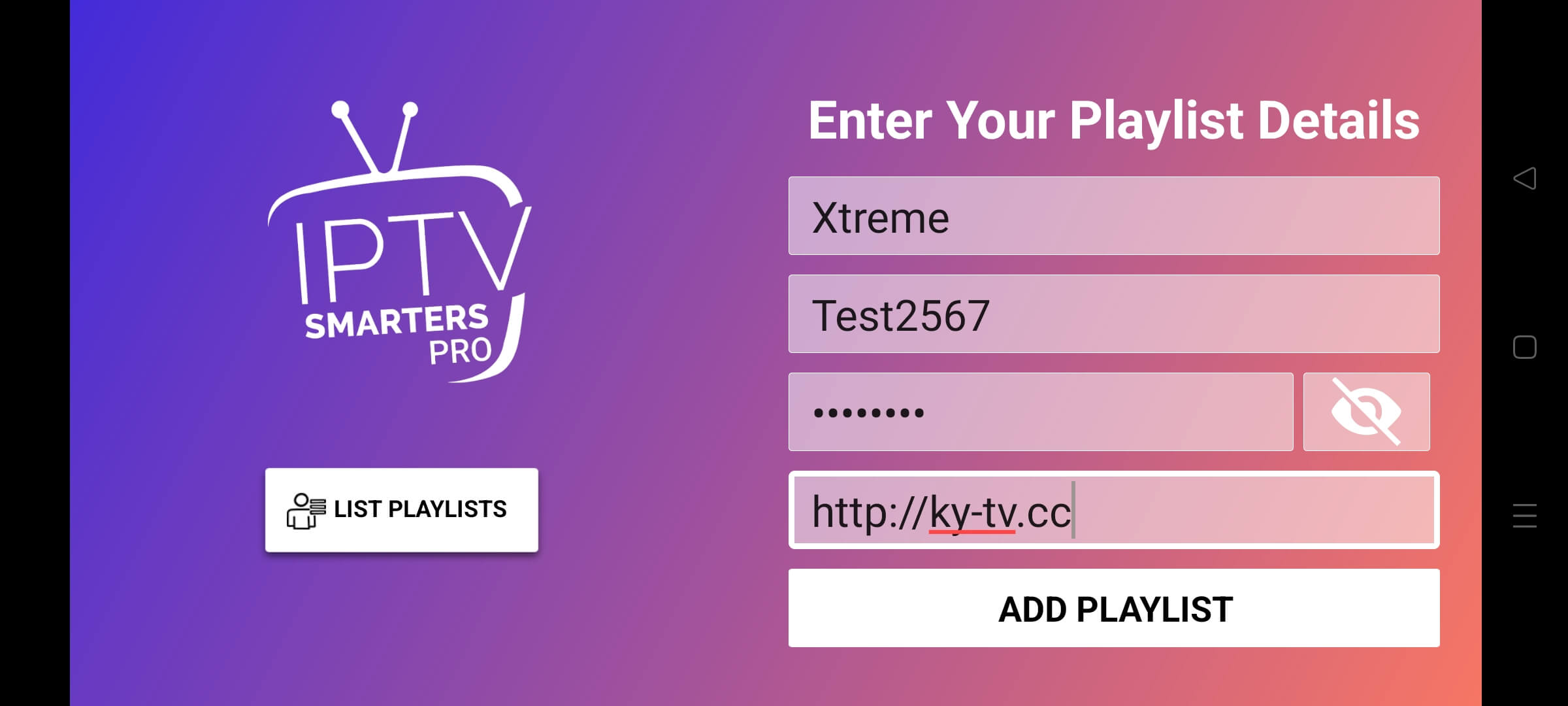
Note: Please enter the username and password exactly as provided. The first letter of both the username and password must be capitalized, and the remaining letters should be lowercase. Do not include any spaces in the portal URL. Also, do not copy and paste the details, as this may cause an “invalid details” error please type them manually.
14: Now you have successfully added the Xtreme HD IPTV on your friestick device so you have to download the each section Live TV, Movies and Series to start streaming.
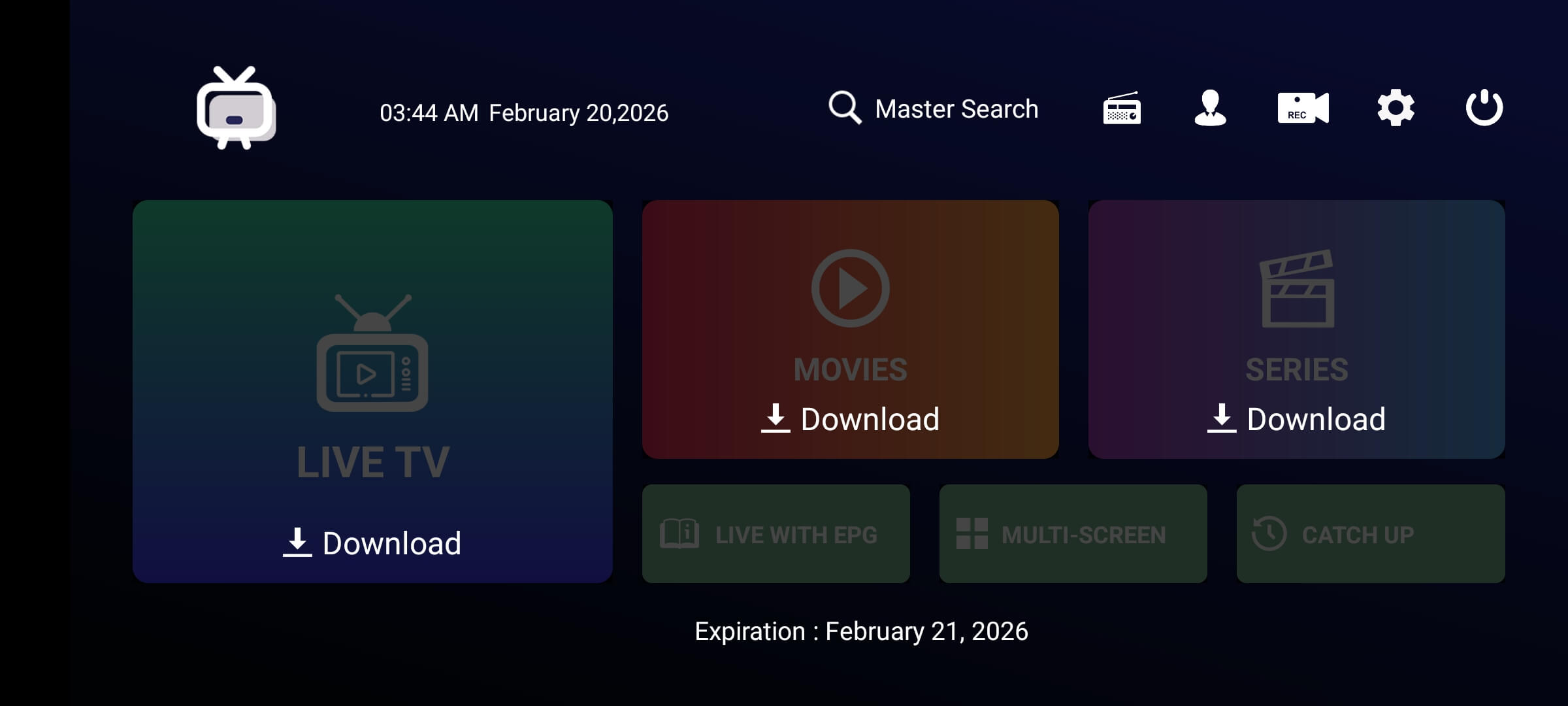
That’s it! your Xtreme HD IPTV is now successfully installed on Firestick and ready to stream. If you’re new to IPTV, take a few minutes to explore the app settings for the best video quality and smoother playback. With everything set up properly, you can now enjoy your favorite channels and on-demand content without any hassle.
Frequently Asked Questions (FAQs)
Installing Xtreme HD IPTV on Firestick can feel confusing at first, especially if you’re new to IPTV apps. These FAQs cover the most common questions so you can set everything up without stress.
Here are the common FAQs on how to install Xtreme HD IPTV on firestick:
Is Xtreme HD IPTV available on the Amazon App Store?
No, Xtreme HD IPTV is not listed on the Amazon App Store. That’s why you need to enable apps from unknown sources and use the Downloader app to install it.
Do I need Downloader to install Xtreme HD IPTV on Firestick?
Yes, Downloader is required to download IPTV apps like IPTV Smarters. It’s the easiest and safest way to install the app on Firestick.
Which app should I use to watch Xtreme HD IPTV on Firestick?
Most users prefer IPTV Smarters because it’s simple and works smoothly with Xtreme HD IPTV. You just log in using the details provided by your service.
Is enabling apps from unknown sources safe on Firestick?
It’s safe as long as you download apps from trusted sources. Always use official links shared by your IPTV provider to avoid issues.
What login details are required after installing the app?
You’ll need your username, password, and server URL. These details are sent to you after purchasing the Xtreme HD IPTV subscription.
Can I install Xtreme HD IPTV on any Firestick model?
Yes, it works on all Firestick models, including Firestick Lite and Firestick 4K. Just make sure your device is updated and connected to the internet.
What should I do if channels don’t load after installation?
Restart the app or your Firestick and check your internet connection. If the issue continues, recheck your login details or contact support.
Once you follow the correct steps, installing Xtreme HD IPTV on Firestick is quick and smooth. If you ever get stuck, these FAQs should help you fix issues and enjoy streaming without interruptions.
Read More:
Top 10 IPTV Service Providers In Canada
Top 5 IPTV Service Providers In Poland
Conclusion
Installing Xtreme HD IPTV on Firestick is straightforward when you follow the correct steps from start to finish.
By enabling apps from unknown sources, installing Downloader, and setting up IPTV Smarters properly, you can get everything running smoothly in just a few minutes.
This guide is meant to remove confusion and help you enjoy uninterrupted access to live TV, movies, and series with ease.
If you still have questions or face any issues, visit the official website and use their live chat support to get quick help directly from the team.
